Why LinkedIn's In-App QR Code Fails Outside the App (and the Fix)
August 31, 2026
Why LinkedIn's In-App QR Code Fails Outside the App (and the Fix)
Quick answer: LinkedIn's built-in profile QR code is designed to be scanned using LinkedIn's own in-app camera feature, which recognizes the code and routes directly to a profile within the LinkedIn ecosystem. When scanned with a generic phone camera or third-party QR scanner outside the app, results are inconsistent — it may not scan at all, or may simply resolve to a generic profile link without the polished in-app experience. The fix: generate a separate, standard QR code from your public profile URL (linkedin.com/in/yourname) using a free tool like QRGen's LinkedIn QR code generator, which works with any camera or scanner, no LinkedIn app required.
Here's the full explanation of why this happens and how to make sure your printed materials always work.
What LinkedIn's In-App QR Code Is Built For
Every LinkedIn profile has an associated QR code, accessible from within the app (typically via the search bar's QR icon). It's built specifically for a narrow, in-person use case: two people who both have the LinkedIn app open, at a networking event or meeting, scanning each other's codes directly within the app to connect instantly. Within that specific context, it works well.
Why It Breaks Down Outside That Context
The moment that code leaves the LinkedIn app's own scanning environment — printed on a business card, a conference badge, a flyer, or a resume — its reliability drops significantly, for a few connected reasons:
- It's optimized for LinkedIn's in-app scanner, not necessarily for a generic phone camera or third-party QR reader, which can produce inconsistent results
- The physical export from the app is often a lower-resolution screenshot or a small in-app rendering, not a print-optimized file
- The scanning person needs the LinkedIn app installed and open to get the full intended experience — someone using a generic camera app may get an unexpected result or no response at all
This mirrors a pattern seen across most major social platforms with their own in-app scan features — see our related piece on Instagram's discontinued Nametag feature for the same underlying issue on a different platform: in-app codes are built for in-app scanning, not for external, universal use.
The Fix: Generate a Standard QR Code Instead
The solution is straightforward — don't rely on LinkedIn's in-app code for anything printed or shared outside the app. Instead:
- Copy your public profile URL (
linkedin.com/in/yourname) directly from your profile page - Generate a standard QR code from that URL using any reliable free generator
- Export it as SVG for print or PNG for digital use
This produces a code that works identically regardless of what camera or scanner someone uses, and regardless of whether they have the LinkedIn app installed at all — since it simply opens the profile URL in a standard mobile or desktop browser.
Side-by-Side Comparison
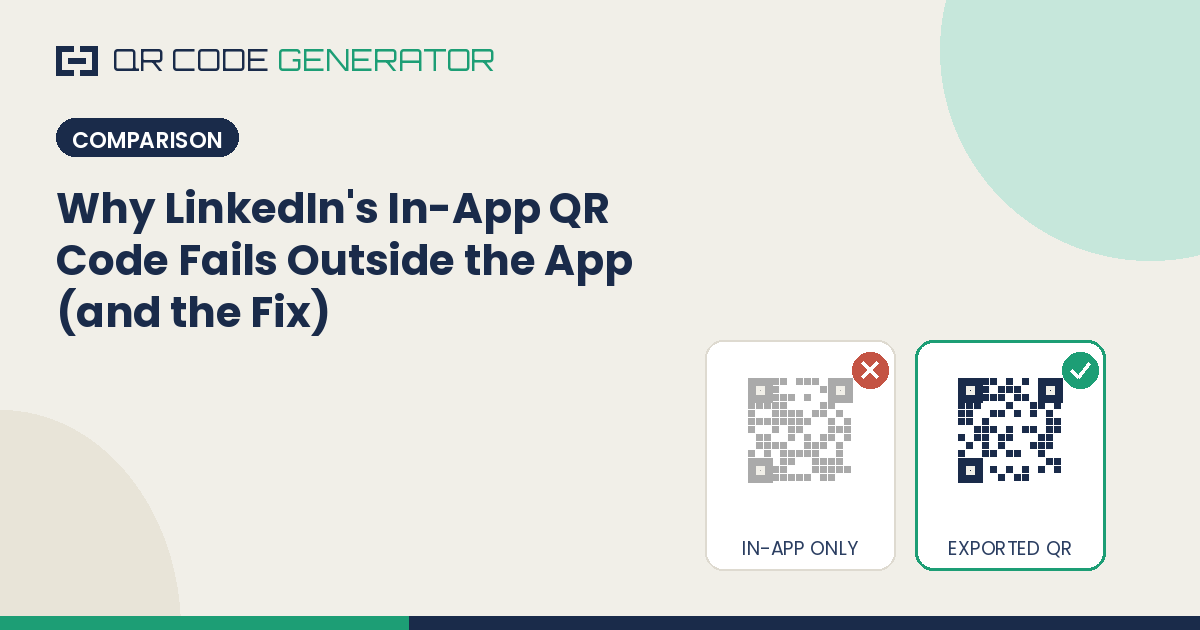
LinkedIn In-App QR CodeStandard Exportable QR CodeScannable by any phone cameraInconsistentYesRequires LinkedIn app installedEffectively yes, for intended behaviorNoPrint-optimized resolutionNoYes (especially as SVG)Customizable with logo/brandingNoYesBest forIn-person, app-to-app connections at eventsBusiness cards, resumes, badges, any external print use
When the In-App Code Is Still Useful
It's worth noting the in-app code isn't broken or useless — it simply has a narrow, correct use case: two people, both already in the LinkedIn app, connecting directly in person. If that describes your exact situation, the in-app code works exactly as intended. The moment the interaction moves to print, or the other person might not have the app open, switch to a standard exported code instead.
Where to Use the Standard Code Instead
- Business cards — see our full guide on putting a LinkedIn QR code on your business card
- Conference badges and networking events
- Printed resumes, giving recruiters a direct scan-to-profile option
- Email signatures and digital materials
Frequently Asked Questions
Can I print LinkedIn's built-in QR code on a business card? It's technically possible to screenshot and print it, but reliability drops significantly outside the LinkedIn app's own scanner — a standard, separately generated QR code from your profile URL is the more dependable choice for print.
Why didn't my LinkedIn QR code scan with my phone's camera? LinkedIn's in-app code is optimized for the app's own scanning feature rather than generic camera apps, which is why results can be inconsistent when scanned outside that specific context.
Does the standard QR code lead to the same profile? Yes — as long as it's generated from your correct public profile URL, it leads to the exact same LinkedIn profile, just via a standard web link rather than an in-app-only mechanism.
Is the standard QR code free to create? Yes — a static QR code generated from your public profile URL is free, requires no account, and never expires.