Why Won't My QR Code Scan? 7 Common Fixes
August 16, 2026
You made a QR code, printed it, pointed your phone at it — and nothing happens. Frustrating, especially if it's already on a flyer, product, or sign.
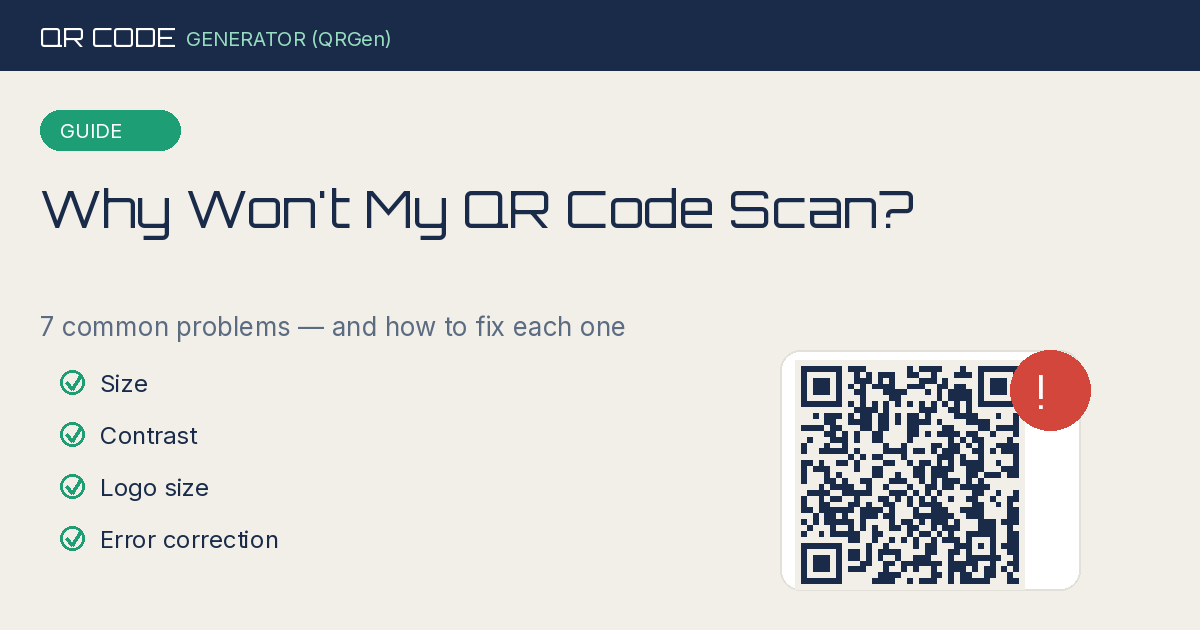
The good news: a QR code that won't scan is almost always caused by one of a handful of well-known problems, and every one of them is fixable. Here are the seven most common culprits, in the order worth checking.
1. The code is printed too small
This is the number-one cause. A QR code needs enough physical size for a camera to resolve all its tiny squares.
The rule of thumb: a QR code should be at least 2 x 2 cm (about 0.8 x 0.8 inches) for close-up scanning, and bigger for anything scanned from a distance. For a poster people scan from a few feet away, aim for 5 cm or more. For a billboard, much larger.
Fix: Increase the printed size. If you're downloading from QR Code Generator (QRGen), export at a large size or use the SVG format, which stays sharp at any scale.
2. Not enough contrast
Scanners read QR codes by detecting the difference between dark modules and the light background. If those two are too similar — light grey on white, or dark blue on black — the camera can't tell them apart.
Fix: Keep strong contrast. Dark code on a light background is safest. If you're customizing colors, make sure the code is significantly darker than its background. Avoid light-colored codes, and never invert to a light code on a dark background unless you've tested it thoroughly.
3. The logo in the middle is too big
Adding a logo to the center of a QR code looks great — until it covers so much of the pattern that the scanner can't reconstruct the data.
Fix: Keep the logo small (roughly 20–30% of the code's width) and make sure you're using a high error-correction level (see the next point). If your logo-heavy code won't scan, shrink the logo first.
4. Error correction is set too low
QR codes have a built-in feature called error correction that lets them still scan even when part of the code is damaged, dirty, or covered. It comes in four levels: L (low), M (medium), Q (quartile), and H (high).
If you've added a logo or expect the code to get scuffed in the real world, a low error-correction level leaves no margin for error.
Fix: Bump the error correction up to Q or H, especially if you've placed a logo in the center or the code will be printed on packaging that gets handled. Higher levels add redundancy so the code survives partial obstruction.
5. Not enough "quiet zone" (the white border)
Every QR code needs a margin of empty space around it — called the quiet zone. Scanners use this blank border to figure out where the code starts and ends. If your code is crammed right up against text, an image edge, or a busy background, it may fail.
Fix: Leave clear white space around all four sides of the code — at least the width of a few modules. When you download from QR Code Generator (QRGen), the code includes a proper margin by default; just don't crop it out during design.
6. The destination link is broken
Sometimes the code scans perfectly — it's the destination that's the problem. If the URL you encoded has a typo, points to a page that's since been deleted, or was never live, the scan will "work" but lead nowhere.
Fix: Test the actual link in a browser before generating the code. Scan your finished code with more than one phone to confirm it lands where it should.
7. Printing or surface problems
Real-world printing introduces issues that don't show up on screen: blurry printing, ink bleeding on cheap paper, a code placed on a curved or reflective surface, or a glossy laminate causing glare.
Fix: Print on matte rather than glossy stock where possible. Keep the code on a flat surface. Use a high-resolution export (SVG or a large PNG) so the edges stay crisp. Avoid placing codes across folds, seams, or curves.
A quick pre-print checklist
Before you send anything to print, run through this:
- Code is at least 2 x 2 cm (bigger for distance scanning)
- Strong contrast — dark code, light background
- Logo (if any) is small and error correction is set to Q or H
- Clear white quiet zone on all sides
- Destination link tested and live
- Exported as SVG or a large, high-resolution PNG
- Scanned successfully with at least two different phones
Ninety percent of scanning failures disappear when you follow that list.
The bottom line
A QR code that won't scan is rarely "broken" — it's usually too small, too low-contrast, missing its border, or carrying a logo without enough error correction to compensate. Work through the seven fixes above and test on a couple of phones before you print.
Create a clean, reliable QR code → with QR Code Generator (QRGen) — set your size, error correction, and logo, then download a print-ready file free.